# Layout Designer Tools
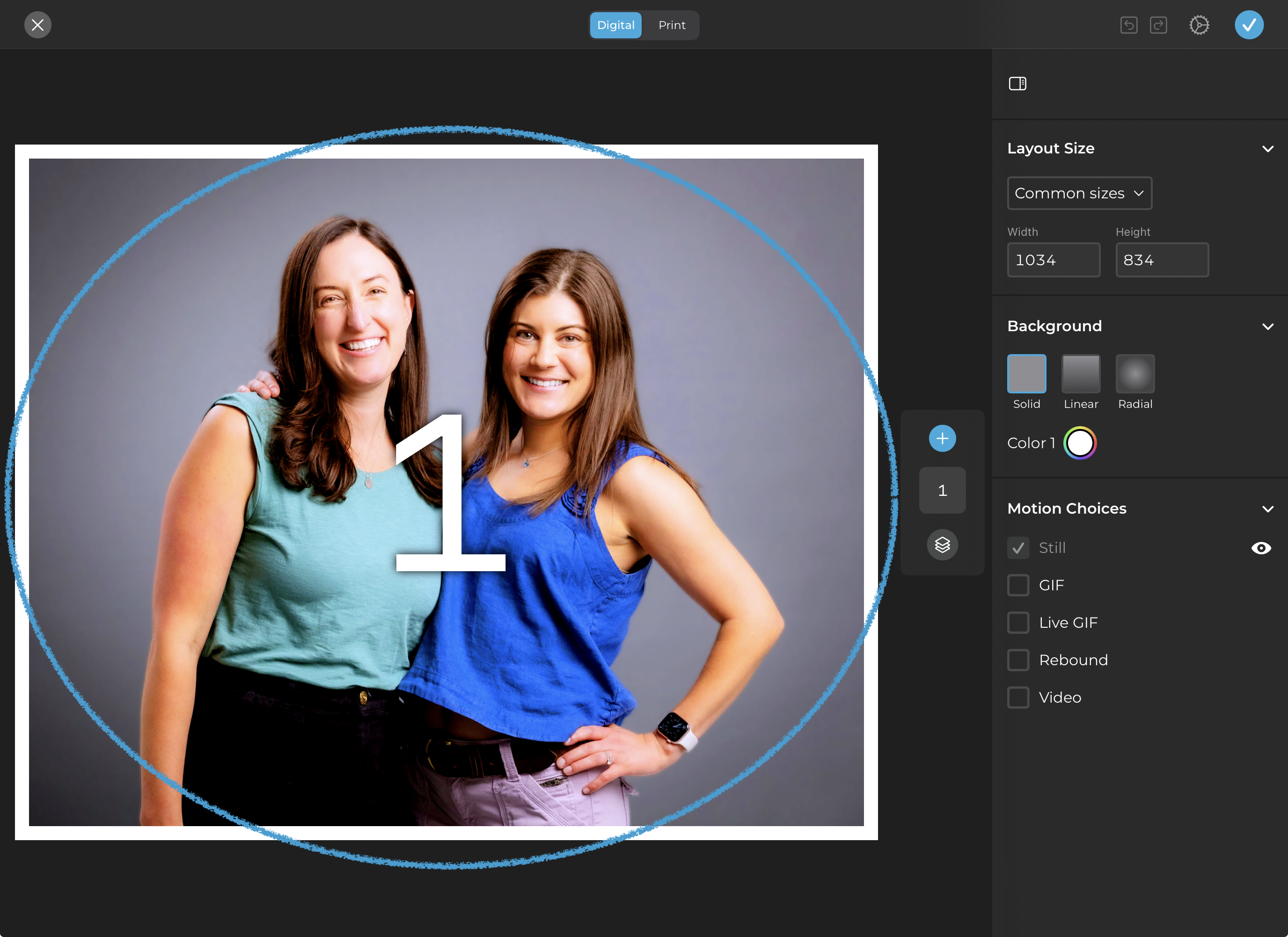
The Layout Designer includes familiar tools from graphic editing programs, like locking, copying, and repositioning design elements (Layers).
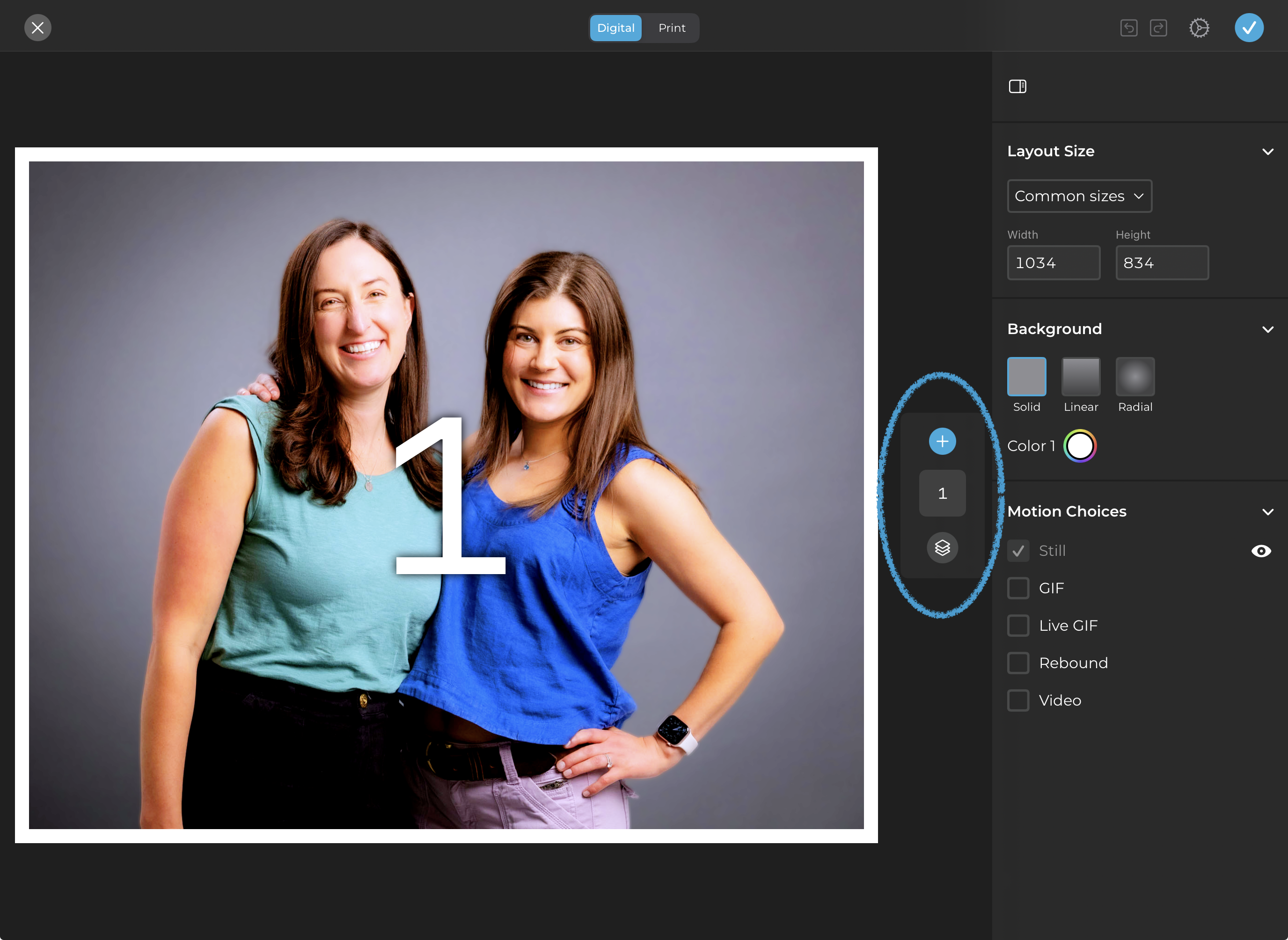
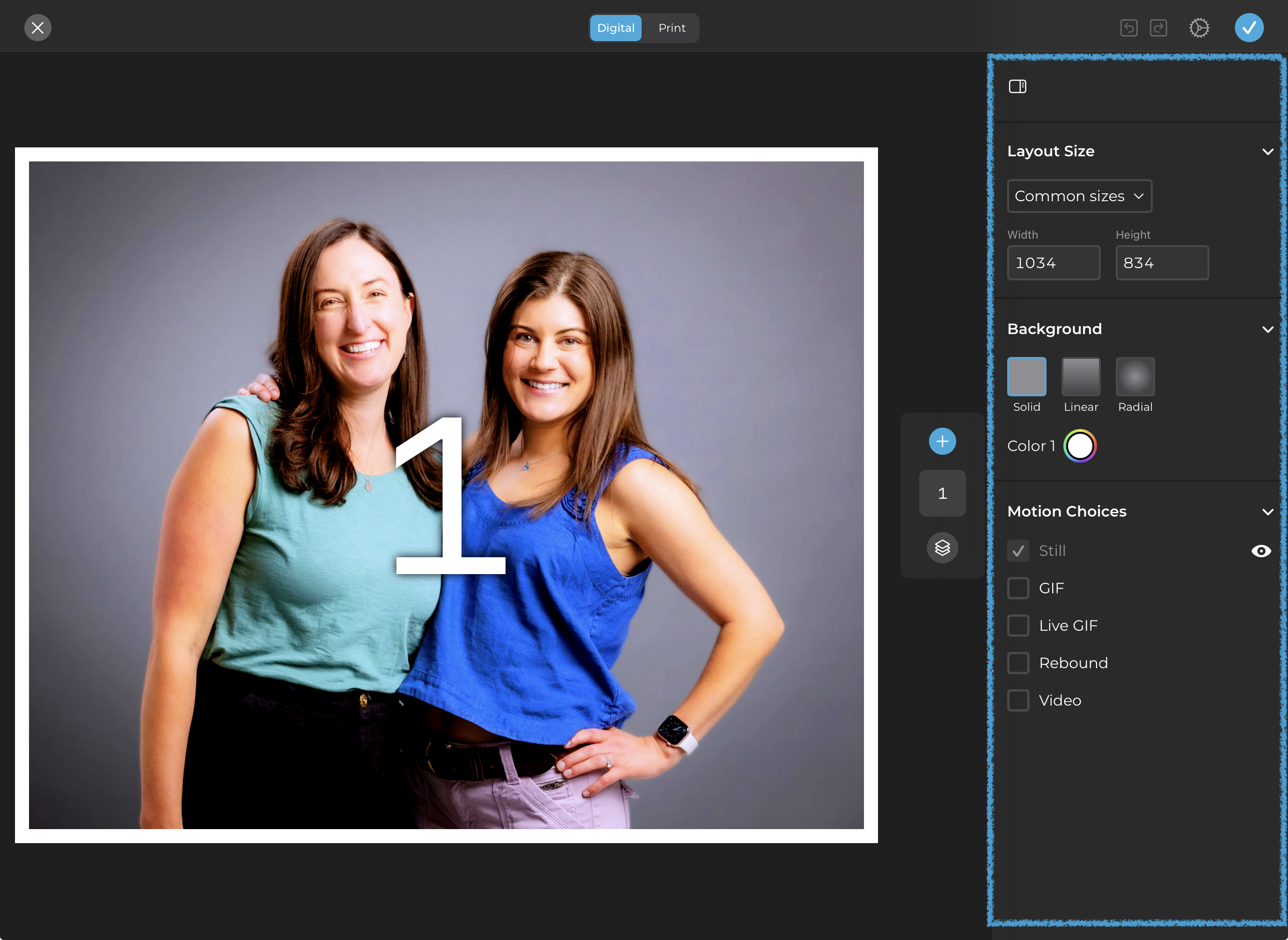
There are three main elements of the Layout Designer:
{% tabs %}
{% tab title="Canvas" %}
The **Canvas** is where your layout appears.
{% endtab %}
{% tab title="Layer List" %}
The **Layer List** is where you can add, reorder, delete, and select layers.
{% endtab %}
{% tab title="Inspector" %}
The **Inspector** contains the settings for the current layer(s) or main layout.
{% endtab %}
{% endtabs %}
***
## Designer Settings
Customize the Layout Designer to fit your workflow. At the top of the designer, use the settings menu to save your preferences for:
* **Preview Style**: Choose how your frames are displayed — numbered frames, image samples, or a mix of both.
* **Frame Aspect Ratio**: Quickly adjust the aspect ratio of all photo frames in your layout. This setting also affects your print layout, if you have one.
* **Layer Snapping**: Choose how layers snap into place when dragging to reposition or resize elements. This also affects the nudge tool.
* **Snap to Canvas**: Aligns the current layer to the center or edges of the canvas.
* **Snap to Layers**: Aligns the current layer with nearby layers.
* **Snap to Canvas & Layers**: Aligns to both the canvas and adjacent layers, depending on position.
* **Disable Snapping**: Turns off snapping for freeform movement.
***
### Layout Settings
When no layers are selected on the canvas, the inspector shows you settings for the layout as a whole.
* **Layout Size**: Choose from a list of common frame sizes or enter a custom size to adjust the overall layout size.
* **Background**: Set a background color for your layout margins. Both solid colors and gradients are supported.
* **Motion Choices**: Enable motion-based layouts such as GIFs, Rebound, or Video. *Only available when your layout contains one photo frame layer.*
* Options for GIFs (number of frames, speed) and videos (max duration) appear after enabling their respective motion choice.
{% hint style="warning" %}
## Known Video Limitations
Shadows, borders, and corners appear as designed in booth mode but won’t display in the online gallery. This display issue will be resolved in a future update.
\
\&#xNAN;*Video layouts include Rebounds.*
{% endhint %}